
Personal files
Back up or consciously move photos, videos and documents first. Decide about deletion afterwards.
WINDOWS GUIDE · FREE UP STORAGE
When storage is running low, use a clear order: first see what takes up space, then review the selection and only afterwards remove items deliberately.
THE SHORT ANSWER
YOUR CHECKLIST
Work from the overview towards individual files. After every step, check whether the selection is clear and whether you really want to remove it.
Check which categories or drives use the most space. Labels can differ between Windows versions.
Review videos, pictures, installers and other large files individually. Size alone does not make a file expendable.
Old installers and repeated downloads are common candidates. Keep what you still need or cannot replace.
Deleted files can keep using space until the Recycle Bin is emptied. Review its contents first.
Check their origin and purpose. Windows offers different categories and options depending on the version.
Uninstall only programs you no longer need. A program's personal files may still matter separately.
Compare name, location and content. Do not remove a copy unless you know which version should remain.
CLASSIFY SPACE HOGS
The safer rule is: decide by purpose, content and backup, not file size alone.
Back up or consciously move photos, videos and documents first. Decide about deletion afterwards.
Check whether an installer is still needed or whether a reliable alternative already exists.
Several copies can be useful. Location and editing status provide important context.
Unclear system folders, drivers and security components do not belong in a blind cleanup.
BEFORE DELETING
Backing up important files is sensible. Still review every selection before removing it. Malware suspicions, error messages or a possible drive defect need a suitable diagnosis — a cleaner does not replace it.
 Optional support
WHEN YOU WANT TO BUNDLE THE ANALYSIS
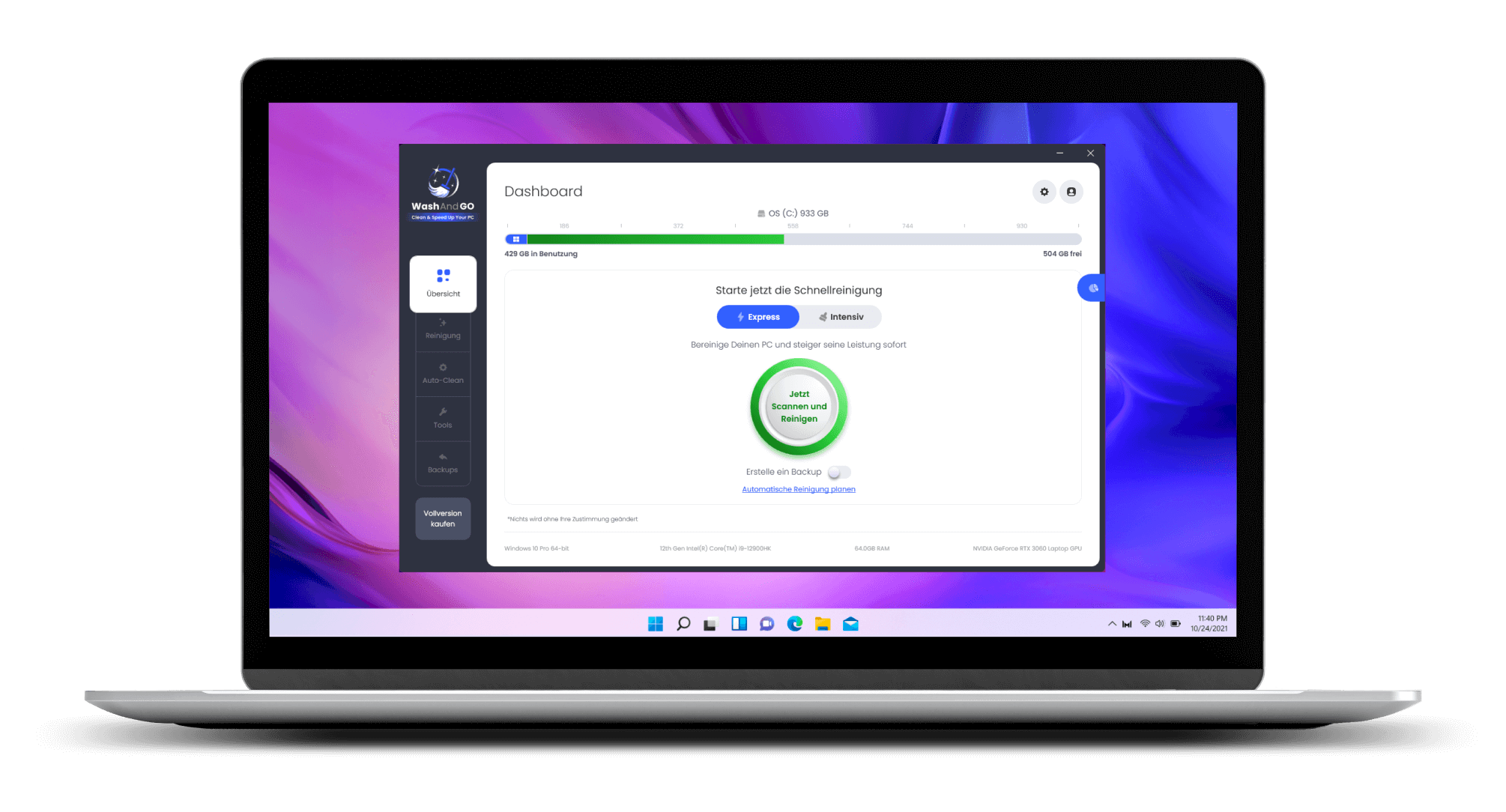
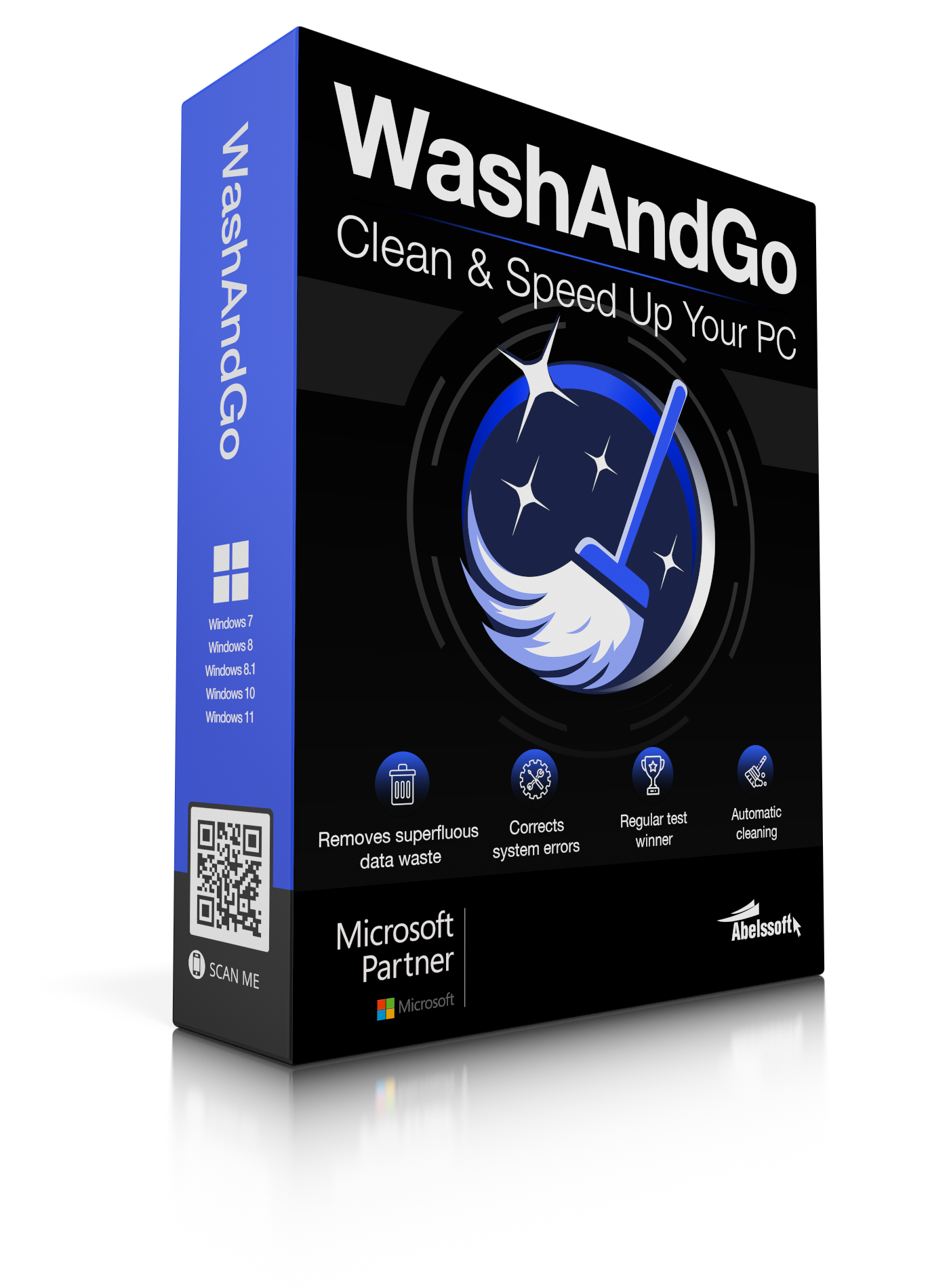
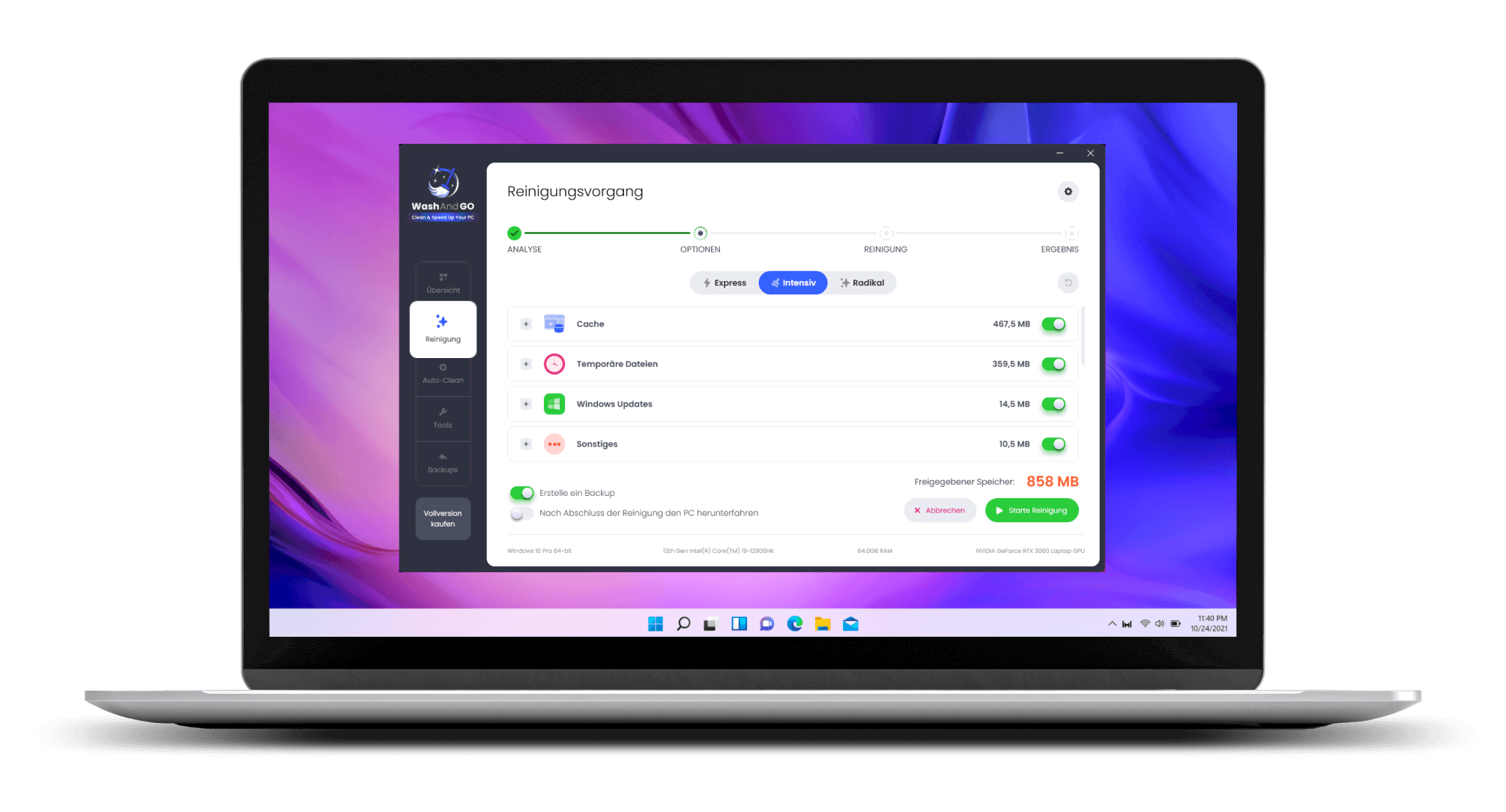
Wash&Go is described as a PC cleaner for Windows. The software first analyses the computer and shows cleanup categories, affected items, estimated releasable storage and available cleaning levels before you confirm a selection.
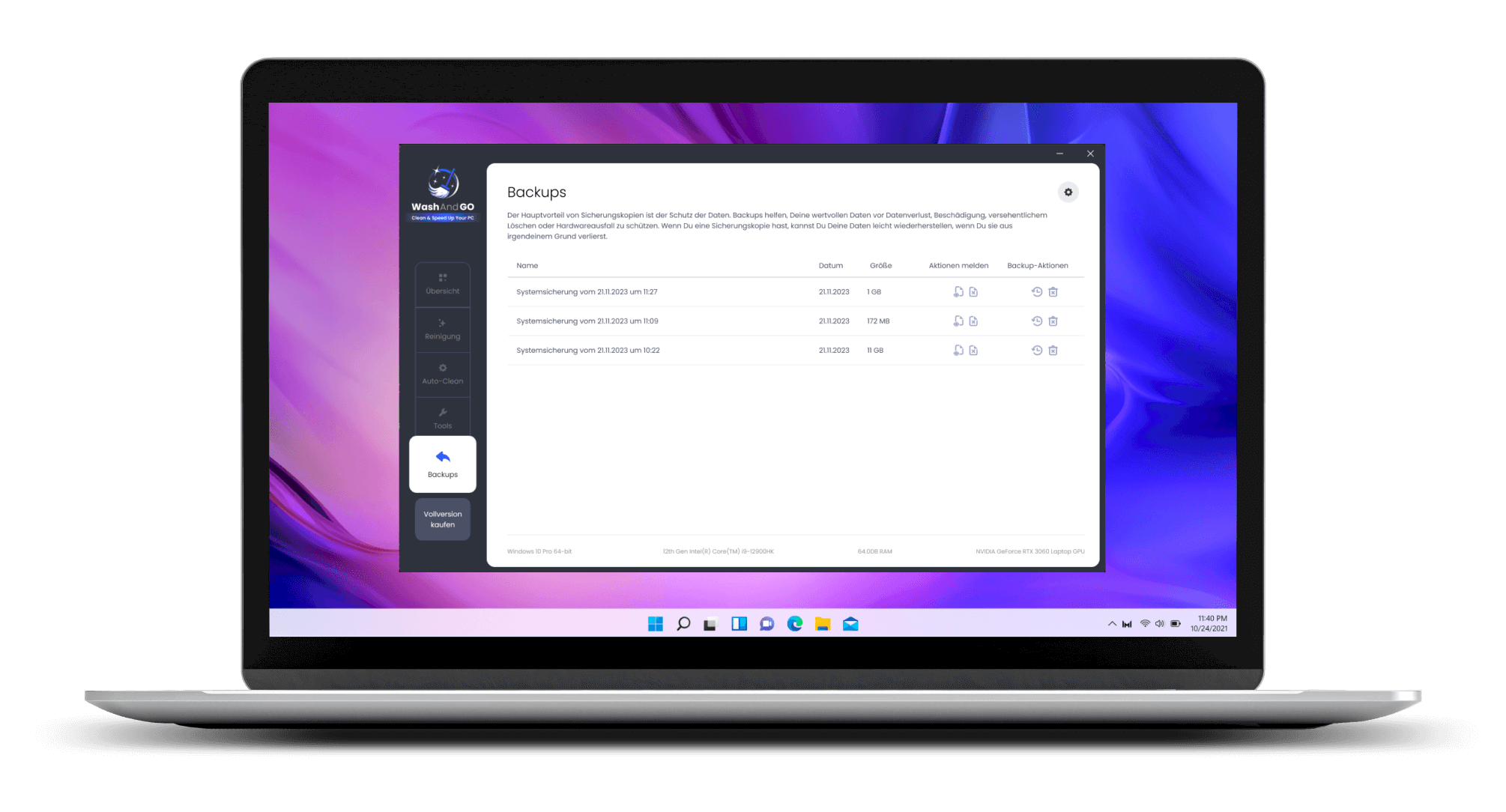
Important: The backup covers the items intended for the specific cleanup and is not a complete system image. Review every selection before removing it.
Try Wash&GoOfficial test-version download · check current terms and requirements before use
ADDITIONAL PRODUCT DETAILS
The supplementary product documentation describes functions that help classify the cleanup and adjust the selection to your needs. This storage guide remains the first step.
After analysis, you can switch categories on or off and check what was found before starting.
The documentation distinguishes Express, Intensive and Radical cleaning. Different levels may cover different categories and system areas.
A backup of affected files and registry entries can be created before cleaning and managed or restored later.
The described storage analysis shows the 100 files using the most space, so large files can be reviewed deliberately.
The duplicate search can group identical files. Compare path, content and editing status before selecting.
Exceptions can be stored for specific files or directories, and cleanup can be limited to older files.
Administrator rights may be required for system-near cleanup functions. Recheck current functionality, version and requirements before publication or use.
WHAT YOU CAN SEE IN THE INTERFACE
Three views from the Wash&Go program interface show how analysis, cleaning levels and backups fit together. You remain in control of the selection.
WHAT FITS YOUR NEED?
Both can make sense. The choice depends on whether you want to review individual categories yourself or use a bundled analysis and cleanup workflow.
FAQ
Clear answers for your next steps — without blanket deletion or speed promises.
Start with the storage overview, then check large files, Downloads, the Recycle Bin, temporary files, old programs and duplicate files. Back up important data and remove only what you can clearly assess.
First check Downloads, the Recycle Bin, temporary files and programs you no longer need. Do not delete personal or unclear system files blindly.
No. Check where the files came from and whether a program still needs them. Categories and options can differ between Windows versions.
Wash&Go is described as a PC cleaner for Windows that can analyse and remove data waste. The product description also names disk analysis, duplicate search, three cleaning levels and a safety backup before cleaning.
That cannot be promised in general. A slow PC can also be limited by hardware, updates, background processes, security issues or a defect.
NEXT STEP
Start with the checklist or check Wash&Go as additional help for analysis and cleanup.